Most Recent

Seo Services
Results for Network

Changing ssh port number

วิธีการเปลี่ยนการใช้งาน ssh ผ่าน port อื่นที่ไม่ใช่ค่า default ใน Linux

บทความนี้จะกล่าวถึงวิธีการเปลี่ยนการใช้งาน ssh ผ่าน port อื่นที่ไม่ใช่ค่า default เพื่อป้องกันการโจมตีผ่าน ssh สำหรับผู้ไม่ประสงค์ดีต่อระบบ

สำหรับขั้นตอนในการเปลี่ยน port ของ ssh มีดังนี้

1. แก้ไขไฟล์ /etc/ssh/sshd_config

# vi /etc/ssh/sshd_config        

2. ค้นหาคำ Port แล้วกำหนดค่าเป็นค่าอื่นที่ต้องการ เช่น 19022

Port 19022                                 

จากนั้นทำการ save และออกจากไฟล์

3. ทำการ restart service เพื่อให้สามารถใช้งานค่า config ใหม่

สำหรับระบบที่ใช้งาน systemd
- service "sshd" สำหรับ CentOS/RHEL/Fedora
- Service "ssh" สำหรับ Ubuntu/Debian/Mint Linux

# systemctl restart sshd           

สำหรับระบบที่ใช้งาน initd 
- service "sshd" สำหรับ CentOS/RHEL/Fedora
- Service "ssh" สำหรับ Ubuntu/Debian/Mint Linux

# service sshd restart               
หรือ
# /etc/init.d/ssh restart              
เท่านี้ก็เป็นอันเสร็จสิ้นกระบวนการ

อย่าลืมตรวจสอบค่าใน firewall ด้วยนะครับ
Changing ssh port number Changing ssh port number Reviewed by Wisoot Amatariyakul on 8:19 PM Rating: 5
วิธีการยกเลิกการใช้งานผ่าน ssh ด้วย account "root" ใน Linux

บทความนี้จะกล่าวถึงวิธีการยกเลิกการใช้งานผ่าน ssh ด้วย account "root"
อย่างที่ทราบกัน account "root" เป็นเป้าหมายของการโจมตีผ่าน ssh สำหรับผู้ไม่ประสงค์ดีต่อระบบ
ดังนั้นวิธีที่จะช่วยลดความเสี่ยงลงมาคือยกเลิกไม่ให้ root เข้าใช้งานได้ผ่าน ssh

ในการใช้งานควรใช้ account ระดับธรรมดาทั่วไปในการเข้ามาใช้งาน ในกรณีที่ต้องการเปลี่ยนสิทธิ์หรือทำงานคำสั่งที่ต้องใช้สิทธิ์ root จึงค่อยใช้คำสั่ง su หรือ sudo

สำหรับขั้นตอนในการยกเลิกการใช้งาน root ผ่าน ssh มีดังนี้

1. แก้ไขไฟล์ /etc/ssh/sshd_config

# vi /etc/ssh/sshd_config

2. ค้นหาคำ PermitRootLogin แล้วกำหนดค่าเป็น no

PermitRootLogin no

จากนั้นทำการ save และออกจากไฟล์

3. ทำการ restart service เพื่อให้สามารถใช้งานค่า config ใหม่

สำหรับระบบที่ใช้งาน systemd

# systemctl restart sshd

สำหรับระบบที่ใช้งาน initd

# service sshd restart
หรือ
# /etc/init.d/ssh restart

เท่านี้ก็เป็นอันเสร็จสิ้นกระบวนการ

วิธีการยกเลิกการใช้งานผ่าน ssh ด้วย account "root" ใน Linux วิธีการยกเลิกการใช้งานผ่าน ssh ด้วย account "root" ใน Linux Reviewed by Wisoot Amatariyakul on 11:21 PM Rating: 5

วิธีการตรวจสอบดูว่ามี network ports อะไรบ้างที่เปิดใช้งานอยู่บน Linux

บทความนี้จะกล่าวถึงวิธีการตรวจสอบดูว่ามี network ports อะไรบ้างที่เปิดใช้งานอยู่บน Linux

เราสามารถดูรายละเอียดของ port ที่เปิดใช้งานอยู่ด้วยคำสั่ง ss, netstat หรือ lsof  นอกจากนี้ยังสามารถใช้คำสั่ง nmap ในการสแกนดู port บน server ต่างๆ ได้

ขั้นตอนแรก ทำการ login เข้าระบบ
ขั้นตอนที่สอง run คำสั่งใดคำสั่งหนึ่งตามด้านล่าง

$ sudo lsof -i -P -n | grep LISTEN
$ sudo netstat -tulpn | grep LISTEN
$ sudo ss -tulw
$ sudo nmap -sTU -O IP-address-Here

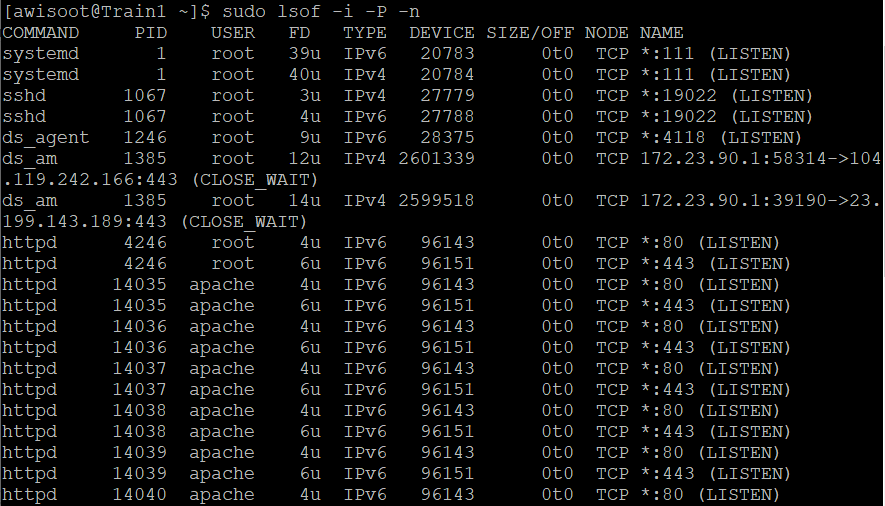
option #1  lsof

รูปแบบการใช้งาน

$ sudo lsof -i -P -n
$ sudo lsof -i -P -n | grep LISTEN

       -i      แสดง network connection ทั้งหมด (LISTENING & ESTABLISHED)
       -n     แปลงจาก network number เป็น host name 
       -P     แปลงจาก port number เป็น port name

ตัวอย่าง


option #2 netstat

รูปแบบการใช้งาน

ทำงานคำสั่ง netstat พร้อมด้วย grep เพื่อทำการคัดกรองข้อมูลเฉพาะ LISTEN state

$ netstat -tulpn | grep LISTEN

   -n    แสดงค่าเป็น IP address
   -p    แสดงค่า PID และชื่อโปรแกรม
   -l     แสดงค่าเฉพาะ listening socket
   -u    แสดงค่าเฉพาะ UDP protocol sockets
   -t     แสดงค่าเฉพาะ TCP protocol sockets

ตัวอย่าง


option #3 ss

รูปแบบการใช้งาน

$ sudo ss -tulw
$ sudo ss -tulwn

-t      แสดงค่าเฉพาะ TCP protocol sockets
-u     แสดงค่าเฉพาะ UDP protocol sockets
-l      แสดงค่าเฉพาะ listening socket
-p     แสดงชื่อ process ที่เปิดใช้ socket
-n     ไม่ทำการ resolve name เช่น  DNS

ตัวอย่าง


option #4 nmap

เป็นคำสั่งที่ใช้ในการสแกน port

  • localhost              - เป็นการดู open port บนเครื่องตัวเอง
  • ระบุ IP address     - เป็นการดู open port บนเครื่อง IP address นั้น


รูปแบบการใช้งาน

$ sudo nmap -sT -O localhost
$ sudo nmap -sU -O 172.23.90.1           ==> [ list open UDP ports ]
$ sudo nmap -sT -O 172.23.90.1           ==> [ list open TCP ports ]

สามารทำการสแกนทั้ง TCP และ UDP พร้อมกันในคำสั่งเดียว

$ sudo nmap -sTU -O 172.23.90.1

-O     แสดงค่า OS version
-sT    list open TCP ports
-sU   list open UDP ports

ตัวอย่าง


วิธีการตรวจสอบดูว่ามี network ports อะไรบ้างที่เปิดใช้งานอยู่บน Linux วิธีการตรวจสอบดูว่ามี network ports อะไรบ้างที่เปิดใช้งานอยู่บน Linux Reviewed by Wisoot Amatariyakul on 3:55 PM Rating: 5

การกำหนดค่า Static IP บน Ubuntu

บทความนี้จะอธิบายถึงวิธีการกำหนดค่่า Static IP บน Ubuntu โดยใช้ command line

Network Configuration บน Ubuntu 17.10 และ Ubuntu 18.04 LTS

การกำหนดค่าในส่วนของ Network บน version 17.10 ขึ้นไปจะใช้ tool ตัวใหม่ที่ชื่อว่า Netplan ซึ่งไฟล์ network configuration "/etc/network/interfaces จะไม่ถูกใช้งาน

การกำหนดค่า Static IP address ด้วย Netplan บน Ubuntu

ต่อไปนี้จะกล่าวถึงขั้นตอนในการกำหนดค่่า Static IP address ด้วย Netplan
ไฟล์ Netplan configuration จัดเก็บอยู่ที่ไดเร็กทอรี่ /etc/netplan โดยที่ไฟล์ default คือ /etc/netplan/01-netcfg.yaml

แก้ไขไฟล์ network configuration ด้วย editor (nano, vi)

$ sudo vi /etc/netplan/01-netcfg.yaml

ไฟล์ configuration yaml เป็นภาษา Python

ตัวอย่างเช่น ต้องการกำหนดค่า static IPv4 address 192.168.1.100 บน network interface ens33 และ gateway 192.168.1.254 โดยที่ใช้ free Google DNS servers 8.8.8.8 และ 8.8.4.4 สำหรับ resolve name

# This file describes the network interfaces available on your system
# For more information, see netplan(5)
network:
    version: 2
    renderer: networkd
    ethernets:
       ens33:
          dhcp4: no
          dhcp6: no
          addresses: [192.168.1.100/24]
          gateway4: 192.168.1.254
          nameservers:
             addresses[8.8.8.8,8.8.4.4]

หลังจากแก้ไขไฟล์เรียบร้อย ต้องทำคำสั่งด้านล่างนี้เพื่อให้ค่าที่แก้ไขถูกนำมาใช้งาน

$ sudo netplan apply

หรือจะทำคำสั่งพร้อมทกับ debug ก็สามารถทำได้ด้วยคำสั่ง

$ sudo netplan --debug apply

การกำหนดค่า DHCP address ด้วย Netplan 

การกำหนดค่่าสำหรับ IPv4 และ IPv6 จาก DHCP server

# This file describes the network interfaces available on your system
# For more information, see netplan(5)
network:
    version: 2
    renderer: networkd
    ethernets:
       ens33:
          dhcp4: yes
          dhcp6: yes

หลังจากแก้ไขไฟล์เรียบร้อย ต้องทำคำสั่งด้านล่างนี้เพื่อให้ค่าที่แก้ไขถูกนำมาใช้งาน

$ sudo netplan apply


Network Configuration บน Ubuntu 12.04 - 17.04 (รวม Ubuntu 16.04 LTS)

ขั้นตอนที่ 1: กำหนดค่าให้กับ network interface

แก้ไขไฟล์ network configuration ด้วย editor (nano, vi)

$ sudo vi /etc/network/interfaces

หลังจากเปิดไฟล์ จะได้ข้อมูลดังด้านล่างสำหรับ version เก่า:

auto lo eth0
iface lo inet loopback
iface eth0 inet dynamic

ระบบ Ubuntu ที่ใช้ systemd (Ubuntu 16.04 และที่ใหม่กว่า) network interface ชื่อ ens33 แทน eth0 และคำว่า 'dynamic' จะถูกแทนด้วย 'dhcp'

configuration เมื่อใช้ dhcp:

# This file describes the network interfaces available on your system
# and how to activate them. For more information, see interfaces(5).

source /etc/network/interfaces.d/*

# The loopback network interface
auto lo
iface lo inet loopback

# The primary network interface
auto ens33
iface ens33 inet dhcp

การกำหนดค่า static ip address สำหรับ version เก่า:

auto lo eth0
iface lo inet loopback
iface eth0 inet static
           address xxx.xxx.xxx.xxx (ใส่ ip ที่นี่)
           netmask xxx.xxx.xxx.xxx
           gateway xxx.xxx.xxx.xxx (ใส่ gateway ip ที่นี่, ปกติเป็น address ของ router)

ตัวอย่างของ version เก่า เช่น:

auto lo eth0
iface lo inet loopback
iface eth0 inet static
           address 192.168.1.100
           netmask 255.255.255.0
           gateway 192.168.1.254

และตัวอย่างสำหรับ Ubuntu 16.04 และที่ใหม่กว่า:

# This file describes the network interfaces available on your system
# and how to activate them. For more information, see interfaces(5).

source /etc/network/interfaces.d/*

# The loopback network interface
auto lo
iface lo inet loopback

# The primary network interface
auto ens33
iface ens33 inet static
   address 192.168.1.100
   netmask 255.255.255.0
   network 192.168.1.0
   broadcast 192.168.1.255
   gateway 192.168.1.254
   dns-nameservers 8.8.8.8 8.8.4.4

ขั้นตอนที่ 2: กำหนดค่า DNS servers

version เก่ากว่า Ubuntu 14.04 เปลี่ยนค่าในไฟล์ /etc/resolv.conf
สำหรับ version ใหม่ กำหนดค่าในไฟล์ /etc/network/interfaces

- Ubuntu versions < 14.04

$ sudo vi /etc/resolv.coonf

เพิ่มข้อมูล

nameserver xxx.xxx.xxx.xxx (ใส่ค่า dns server ip)
nameserver xxx.xxx.xxx.xxx (ใส่ค่า dns server ip เครื่องอื่น)

ตัวอย่างเข่น

nameserver  8.8.8.8
nameserver  8.8.4.4

- Ubuntu version 14.04 และที่ใหม่กว่า

เปิดไฟล์ /etc/network/interfaces และเพิ่มค่า dns server

$ sudo vi /etc/network/interfaces

auto lo
iface lo inet loopback

# The primary network interface
auto ens33
iface ens33 inet static
   address 192.168.1.100
   netmask 255.255.255.0
   gateway 192.168.1.254
   dns-nameservers 8.8.8.8

nameservers 8.8.8.8 และ 8.8.4.4 สร้างโดย Google ให้ใช้สำหรับ public เราสามารถนำมาใช้ในการกำหนด

ขั้นตอนที่ 3: Restart network

หลังจากทำการแก้ไขค่าต่างๆ เรียบร้อยแล้ว ให้ทำการ restart network service

สำหรับ Ubuntu < 14.04 ใช้ networking init script:

$ sudo /etc/init.d/networking restart

ผลลัพธ์จะแสดงค่าดังด้านล่าง

*Reconfiguring network interfaces... [OK]

สำหรับ Ubuntu 14.04 และ version ใหม่กว่า ใช้  systemctl แทน:

$ sudo systemctl restart ifup@eth0

จากนั้นคุณสามารถตรวจสอบดูว่าค่าที่กำหนดไว้ถูกต้องหรือไม่ด้วยคำสั่ง:

$ ifconfig

การกำหนดค่า hostname

hostname ของ Ubuntu Server หรือ Desktop จะกำหนดค่าในไฟล์ /etc/hostname และ /etc/hosts
ไฟล์ /etc/hostname จะกำหนดค่า hostname ที่แท้จริง ขณะที่ /etc/hosts จะใช้สำหรับ local name resolution

อันดับแรก แก้ไขไฟล์ /etc/hostname

$ sudo vi /etc/hostname

จากนั้นให้กำหนดเฉพาะชื่อ hostname เท่านั้น เช่น obtlix

obtlix

และบันทึกไฟล์

จากนั้นแก้ไขไฟล์ /etc/hosts

$ sudo vi /etc/hosts

และเปลี่ยนค่า IP address พร้อมชื่อ host เช่น:

192.168.1.100 obtlix.example.com  obtlix

รูปแบบในการกำหนดค่าในไฟล์นี้คือ

[IP Address]  [Full hostname + domain] [hostname]

จากนั้นทำการ restart เครื่องเพื่อให้ค่าที่แก้ไขถูกใช้งาน

ขอบคุณข้อมูลจากลิ้ง https://www.howtoforge.com/linux-basics-set-a-static-ip-on-ubuntu


การกำหนดค่า Static IP บน Ubuntu การกำหนดค่า Static IP บน Ubuntu Reviewed by Wisoot Amatariyakul on 1:46 AM Rating: 5
ads 728x90 B
Powered by Blogger.